Android TV Remote
A keyboard-driven Qt remote for Arch Linux, with a trackpad for NVIDIA Shield TV.
Try the interactive demoFocus Areas
- Arch Linux
- Android TV
- NVIDIA Shield
- Python
- Qt
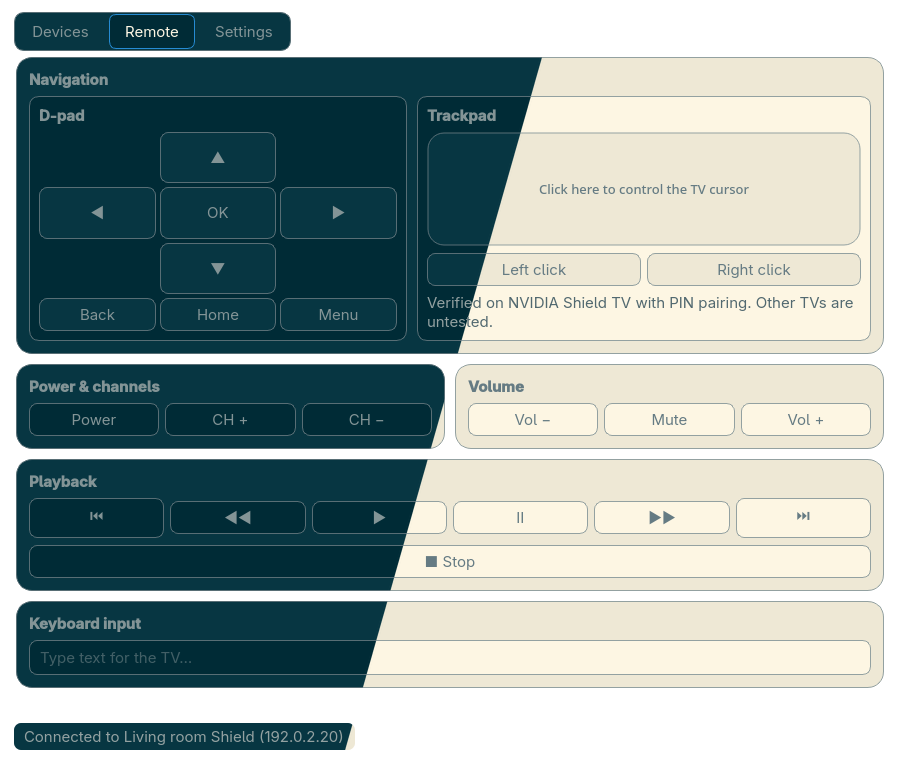
In the interactive demo, open Settings and change Sample state from Connected to Shield requests PIN. The remote is still connected, but the trackpad isn’t ready yet. Switch to Remote to see what that looks like, or flip the theme to compare the two Solarized palettes. The TV is a sample: nothing in the demo scans your network or sends a command.
Why a D-pad wasn’t enough
Arrow keys work well for moving between rows of movies. They work less well in a TV browser, where the thing I want to click might be a small link halfway down a page. I wanted the trackpad from the Shield phone app without having to put down my laptop. I started from Rex Ackermann’s Android TV Remote and now maintain a rewrite built around that workflow.
From the address bar back to the pointer
Here’s the interaction I wanted to get right. In the desktop app, press F2 to enter pointer mode, move to the TV browser’s address bar, and press Space to click. Press i, type or paste a URL, then press Esc. You’re back in pointer mode, with no need to grab the trackpad again. Start typing from the D-pad instead and Esc returns you there.
The same distinction makes a few keys do useful double duty: h/j/k/l move the selection in D-pad mode and the cursor in pointer mode. Space plays or pauses in D-pad mode but clicks in pointer mode. Press ? on the Remote tab to see the active bindings.
Pairing and installation
On Arch Linux, install android-tv-remote-git from the AUR. With paru:
paru -S android-tv-remote-git
android-tv-remote
With the TV and laptop on the same LAN, select the TV in Devices and complete remote pairing. For a Shield, choose Pair trackpad and enter the separate PIN shown on the TV. That’s the pointer path I’ve verified: it doesn’t need ADB or network debugging. Other Android TVs can use the ordinary remote controls; the optional ADB mouse backend is separate and hasn’t been verified on those devices.
The project repository has the full keymap, pairing instructions, and source. The desktop app follows Qt’s light or dark setting; the browser demo lets you compare both without changing your desktop.